

Solis Inverter - Knowledge Hub
Use this guide to identify and resolve common Solis inverter issues. Click a topic below to jump directly to the relevant instructions.
- 🔗 Solis Alarm: Finding Your Error Reason Code
Explains how to check the inverter screen for an alarm message and interpret common fault codes (e.g. CAN communication failure, no battery detected). Includes a full system restart procedure. - 🔗 System Offline
Covers what to do when your inverter appears offline or disconnected from monitoring. Provides step-by-step reconnection guidance to restore communication between the inverter and batteries. - 🔗 Restart Solis–Pylon System
Details how to safely power-cycle the inverter and batteries to clear persistent alarms or offline issues. Includes correct switch-off and power-on sequences for reliable system recovery. - 🔗 Common Solis Alerts & Troubleshooting
Identify and resolve frequent system alerts such as Batt Comm, Alarm BMS, and Grid Over Voltage, including clear steps on what to do when an error occurs. - 🔗 Understanding Your Solis Monitoring
A guide to reading your Solis Cloud app’s live feed and generation graphs. Learn how to interpret the data for PV, Grid, Battery, and Load to track your system’s performance.
Solis Alarm: Finding your Error Reason Code
If your inverter is displaying a flashing alarm light, check the cause on the inverter screen. Press Enter, scroll to Advanced Information, then select Alarm Message. Common alarms include CAN communication failure, arc fault, or no battery detected. These are typically resolved by performing a full system restart.
To restart the system:
- Turn the black isolator to OFF.
- Turn the red isolator to OFF.
- Switch each battery OFF, one at a time.
- Locate the main fuse and pull it firmly towards you to disconnect.
Leave the system powered down for 15 minutes.
After 15 minutes, power the system back up in the following order:
- Turn the red isolator ON.
- Turn the black isolator ON.
- Push the main fuse back in.
- Turn each battery ON, one at a time.
Identify the master battery — this is the one with the Ethernet cable connecting directly to the inverter (not daisy-chained) and two orange cables. On this battery, press and hold the SW button for approximately 15 seconds.
Wait 5–10 minutes for the system to reconnect. The alarm light should stop flashing once the inverter and batteries are communicating correctly.
System Offline
Hold the silver part of the datalogger and gently twist the black cap at the top anti-clockwise to remove it. Leave it disconnected from the inverter for at least 30 seconds, then carefully reinsert it, aligning the pins. Twist clockwise to reconnect — the dongle lights will begin flashing.
A solid green light means it has reconnected to Wi-Fi and monitoring will resume within 30 minutes. A flashing green light means no network connection — you’ll need to reset the datalogger.
To reset, press and hold the reset button on the back for 10–15 seconds until the LEDs flash. Then open your phone’s Wi-Fi settings and look for a network starting with Solis, S, 5, or D followed by numbers. If you can’t see this network, repeat the reset until it appears — it may take a minute.
Connect to that network using the password 123456789, then open a browser and go to 10.10.100.254.
-
If you see an orange screen, log in with:
Username: admin
Password: Greenscape01
-
If it looks different, use:
Username: admin
Password: 123456789
If the connection drops while loading, simply reconnect to the datalogger Wi-Fi and reload the page. Once on the Solis page, select Quick Set, choose your Wi-Fi network, and enter your Wi-Fi password (case-sensitive). Tap Save.
After about a minute, you’ll see the LEDs flash randomly — the green LED should turn solid, confirming the network is reconnected. The Solis network will disappear from your phone’s Wi-Fi list once connected. Wait 5–10 minutes for the app to refresh and show monitoring again.
If the green light keeps flashing after 30 minutes, repeat the steps. If it still won’t reconnect, call 01473 727727 for support.
Rebooting Your Solis and Pylon System
To restart the system:
- Turn the black isolator to OFF.
- Turn the red isolator to OFF.
- Switch each battery OFF, one at a time.
- Locate the main fuse and pull it firmly towards you to disconnect.
Leave the system powered down for 15 minutes.
After 15 minutes, power the system back up in the following order:
- Turn the red isolator ON.
- Turn the black isolator ON.
- Push the main fuse back in.
- Turn each battery ON, one at a time.
Identify the master battery — this is the one with the Ethernet cable connecting directly to the inverter (not daisy-chained) and two orange cables. On this battery, press and hold the SW button for approximately 15 seconds.
Wait 5–10 minutes for the system to reconnect. The alarm light should stop flashing once the inverter and batteries are communicating correctly.
Understanding Common Alerts
Batt Comm/Can Comm/No Battery:
This alert is a loss of communication between the battery and the inverter. This causes inaccurate readings on your monitoring, often showing your battery at 0% charge but this is due to the loss of communication.
What do I do if I have this alert?
- Perform a full system shutdown (please refer to our Shut Down / Start Up Guide).
- If the alarm persists after this, call our team on 01473 727727.
- If you have a newer style datalogger, our team may be able to remotely clear the alarm.
- If our team are unable to remotely clear the alarm and this has been in the alarm state for over an hour, a site visit will be required.
Alarm BMS/AlarmBMS2:
This alert is triggered by the battery management system within your battery. It notifies the inverter that there is either a low level or high level of charge within the battery to either signal the inverter to take on more charge or to stop charging.
What do I do if I have this alert?
- Perform a full system shutdown (please refer to our Shut Down / Start Up Guide).
- If the alarm persists after this, call our team on 01473 727727 and we can contact Solis to perform a HMI update.
- Once the update is complete, you will need to monitor the system for the next 24-48 hours.
- If the alarms persist after this time and last longer than 5 minutes, let our office know and we will arrange for a site visit.
ARC/AFCI:
This alert is directly related to sensitivity within the inverter. The sensitivity settings are set to off as default and therefore these alerts can occur trigger falsely.
What do I do if I have this alert?
- Contact Greenscape who will review your inverter settings.
- After changes have been made, monitor the system for the next 24-48 hours.
- If alarms persist and do not clear within 5 minutes, please call our office.
Grid Over Voltage:
This alert can be caused by two things; both grid voltage being too high and false alarms. If the grid voltage spikes for whatever reason, the inverter can report this issue. If firmware is outdated on the system, the alert can come up without being a true reflection, therefore causing a false alarm.
What do I do if I have this alert?
- If you have had less than 5 alerts, you do not need to do anything further. This is not a cause for concern.
- Contact your local grid provider to see if there are works going ahead in your area.
- If you are having multiple alarms and they are lasting longer than 5 minutes, please contact Greenscape and we will review your settings.
- If the alarms are false we can reach out to Solis and ask that they perform an update which stops the alarms occurring incorrectly.
No Grid:
This alert occurs when the inverter has lost mains power. This can happen in a powercut or as a result of bad weather. This can usually be resolved without the need for a visit.
What do I do if I have this alert?
- Check the fuseboard we installed to see if any of the fuses have tripped.
- If they have, please push these back up and wait 30 minutes for the alarm to clear.
- If the fuse immediately trips again, please contact our office as we will then need a visit.
Monitoring Help Guide
Included below is information relating to the Solis Cloud monitoring platform. This is here to help you with frequently asked queries and to give you a basic understanding of the different features available to you.
Your Solis Cloud app will have a graph at the top of the screen which is a live feed of what your system is doing:
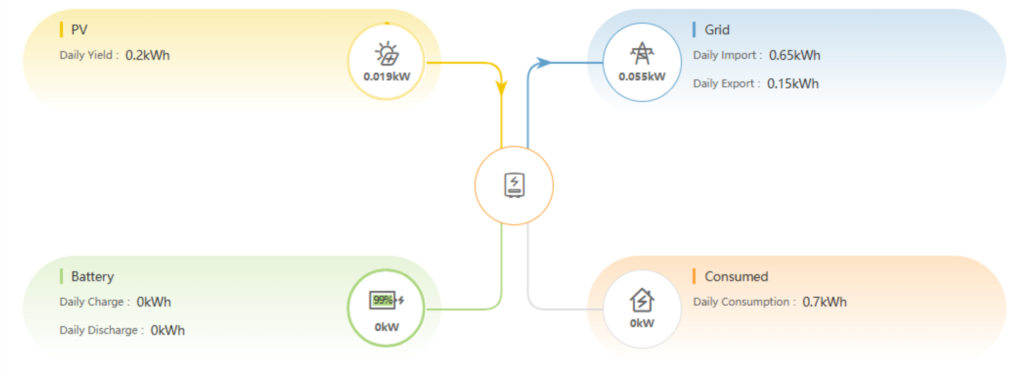
- PV: This shows you how much solar generation in kW that you are producing, the daily yield value beneath is how much you have generated in total for the day.
- Grid: This shows how much energy you are either importing (what you are using from the grid) or exporting (what you’re sending out to the grid), dependent on which way the energy is flowing. If this ever looks grey, it means nothing is being imported or exported.
- Battery: This shows how much energy is either being put into the battery or how much is coming out of the battery. Battery going in is known as charge and the energy coming out is known as discharge. The number within the battery image represents how much charge your batteries are holding.
- Consumed: This shows how much energy your property is using. The daily consumption figure is the total usage for the day. If this ever looks grey in colour, it means the house is not using anything at that given time.
The information on this diagram, although very useful to provide an insight into the data, can never be taken at face value. Each element of the data refreshes every 5 minutes but they do not consistently update at the same time.
The Solis Cloud app is not MID approved and therefore cannot be used for billing purposes. Therefore, it is highly likely that you may see inaccuracies within the data, this is nothing to be concerned about.
In addition to the diagram, you will also see a graph further down:
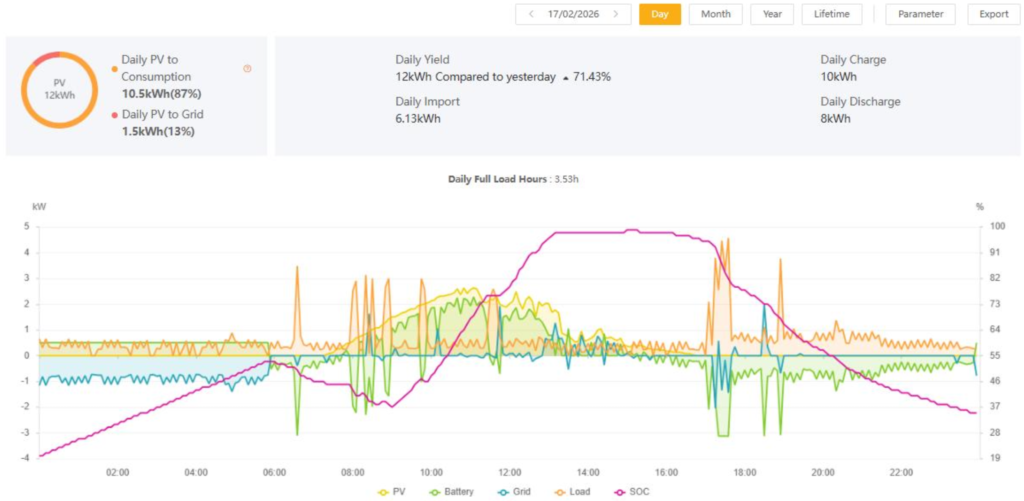
- PV: This is shown in yellow and is the amount of energy being generated by your solar panels.
- Battery: This is shown in green and shows the amount of energy that is both going into your battery, or how much is coming out.
- Grid: This is shown in blue and shows the amount of energy being taken in by the system, or the amount of energy being exported to the grid due to excess solar production.
- Load: This is shown in orange and represents the amount of energy that your home is using.
- SOC (State of Charge): This is shown in pink and reflects how full your battery is. If the battery goes across in a straight line as shown in the example, this means it is not active and remains at the same charge percentage.
On the graph you will see a key along the left and bottom with figures, do not pay too much attention to these as they can change daily and they are only present for visual purposes.
Some information is below the middle line and some is above; the best way to explain this is to think that anything you see below the middle line is what you are taking from either the battery or the grid.
In our example, you can see the blue grid line below the middle line between approximately 00:00-05:00am; this shows that between this period, the system was taking this energy from the grid. Whereas, the green line above the middle line shows that this energy was going into the batteries.
You can click on any of the parameters on this graph to select them or remove them entirely from the view. This way, if you wish to focus on one aspect of the graph, this enables you to do this.
The monitoring system will send you a notification to your registered email address if you have any faults that occur. If you are not receiving any email notifications please do contact Solis and they can change this on their end.
You can reach them on:
- Contact Number: 0151 453 6515
- Email Address: euservice@solisinverters.com
- WhatsApp Chat: 07494 047257
Contact us today
Want to get in contact with Greenscape today? Complete the form and our team will be in contact with you shortly. Alternatively you can email us directly.